Shopify SEO after launch: seven signals to check
A theme update or an app can change seven signals Google reads on your Shopify store, and here is how to check each one yourself.
The short version. You have finished a Shopify SEO checklist, and it describes your store on the day you finished it. After that, seven signals shape how Google reads the store, and a theme update, an app install or an app removal can change any of them while the storefront looks and works as before. Noindex says whether a page may be listed at all, the canonical tag names a page’s real address, the robots.txt file says which pages Google’s bots may fetch, and the sitemap is the list of pages you hand Google. The rest are page titles, the structured data behind prices and reviews in results, and redirects, which send old addresses to new ones. Your browser and Google Search Console, Google’s free report on how it sees your site, cover most of the checks. Most weeks there is nothing to do. The one to check first is noindex, because a page told to stay out of Google drops out of results and nothing a shopper sees gives it away.
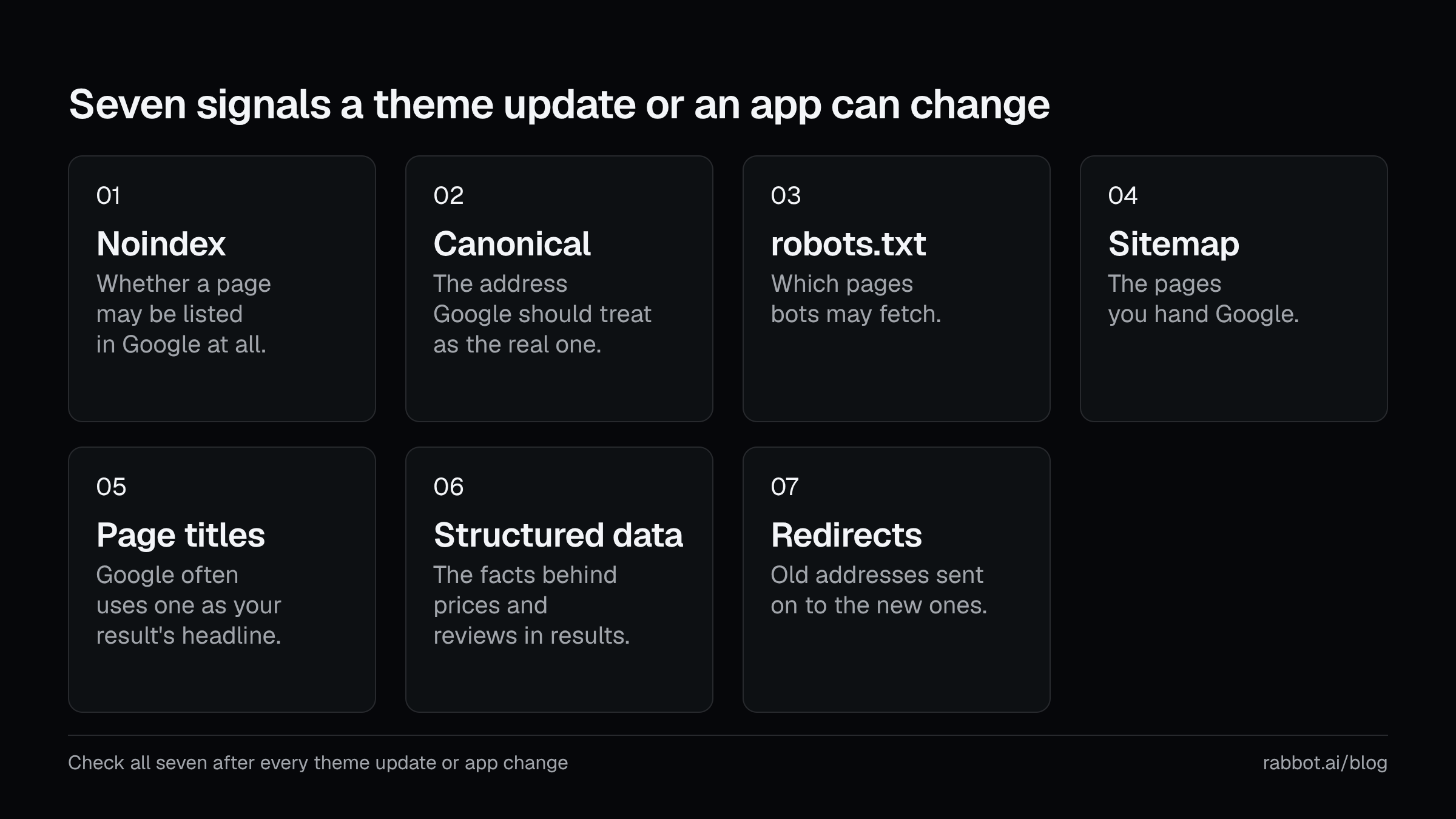
Picture the presets on a car radio. You set them once. The garage fits a new battery and hands back the keys, and the car drives as before, with the clock flashing and every station gone. Nothing about the drive tells you, and you find out when you press a button. The seven signals are the presets, and a theme update or an app is the garage.
Where the changes come from
Shopify does a lot of this for you. Its SEO overview says it generates canonical tags, the sitemap and robots.txt automatically, that themes generate your title tags, and that product structured data is built in. Those defaults are Shopify’s to maintain and they mostly hold. The layer on top is yours: your theme’s code, and whatever your apps write into it.
From Shopify’s theme update help page.
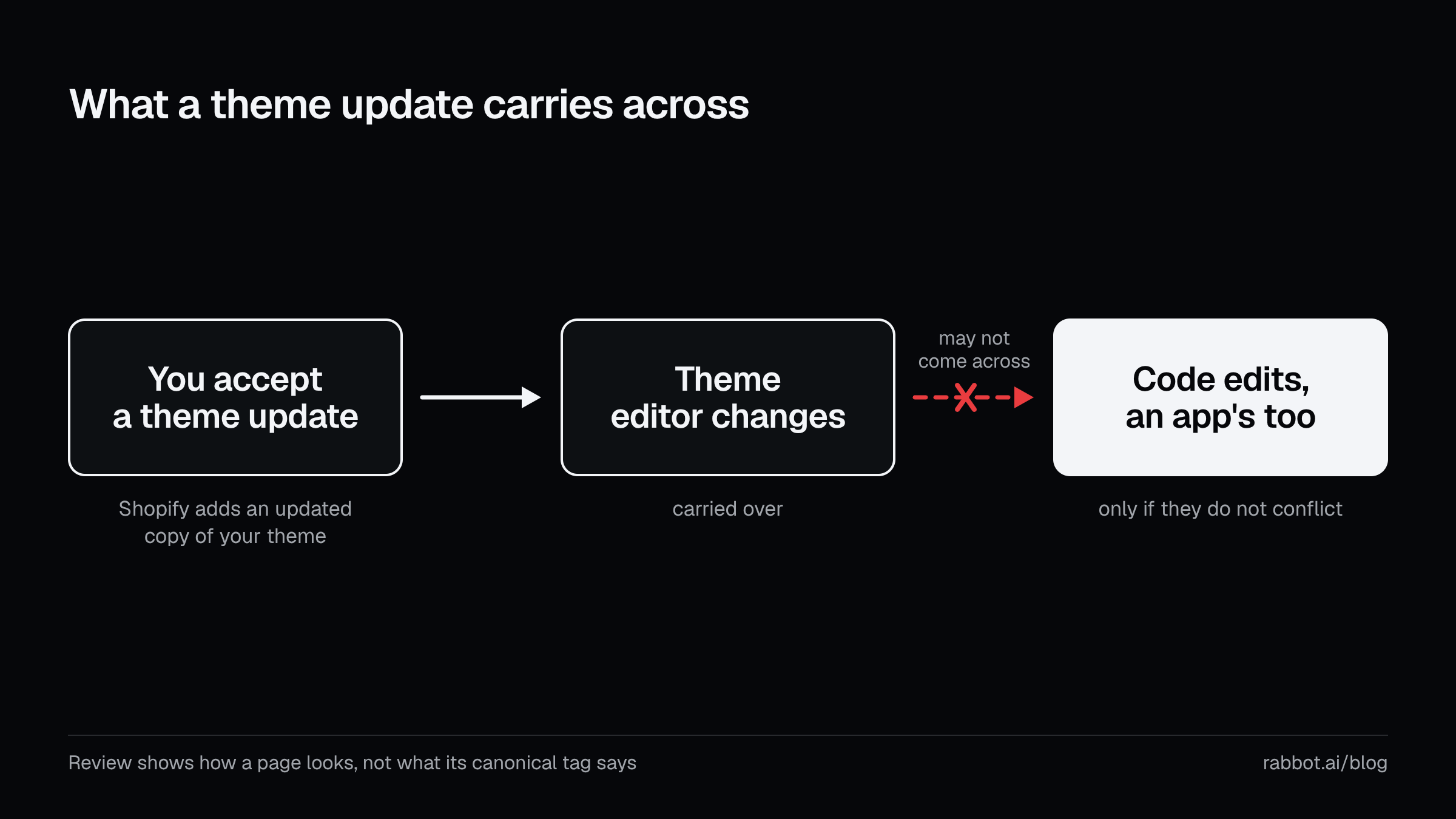
A theme update is the first kind of garage visit. When you accept one, Shopify adds the new version to your draft themes as an “Updated copy of” your theme and carries over what you changed in the theme editor. Code edits, including any an installed app made for you, come across if they don’t conflict with the update. When they can’t, the theme card says “Theme added: code edits could not be included”. The Review button is there to check that the new theme “displays and functions the way you expect it to”, and a preview of how a page looks doesn’t show you a canonical tag.
Apps are the second. Apps built with Shopify’s theme app extension framework don’t edit your theme’s code, but Shopify warns that “Some apps add code to your online store theme that isn’t automatically removed when you uninstall the app.” An app can also hide a page from search without touching your theme. Shopify says third-party apps can use the seo.hidden metafield, a custom field a page can carry, to hide a resource from search engines and sitemaps.
People are the third. Shopify’s own guide to hiding a page has you paste a noindex line into theme.liquid, the main file of your theme, and a line pasted into code is what an update may not bring across. You are allowed to find that unsettling. I can’t see your theme, so I can’t say which of the seven an update will touch, which is the reason to check all of them after each visit.
Two rules that decide what Google fetches and lists
Noindex is a line in a page’s code, or in the HTTP header (the note a server sends ahead of the page), that tells search engines not to list the page. Google’s documentation is blunt about the effect: it will “drop that page entirely from Google Search results”. Shopify gives you three ways to hide a page from search engines: a noindex line in theme.liquid, the Unlisted status on a product, or the seo.hidden metafield set to 1. The last two also take the page out of your sitemap.
The robots.txt file sits at yourstore.com/robots.txt and tells crawlers, the bots search engines use to fetch pages, which addresses they may request. Shopify says the default works for most stores. Customising it means adding a robots.txt.liquid template, and Shopify warns that “Incorrect use of the feature can result in loss of all traffic.” Uploading a theme from the Themes section of the admin “won’t import robots.txt.liquid”, so custom rules don’t travel with an uploaded theme.
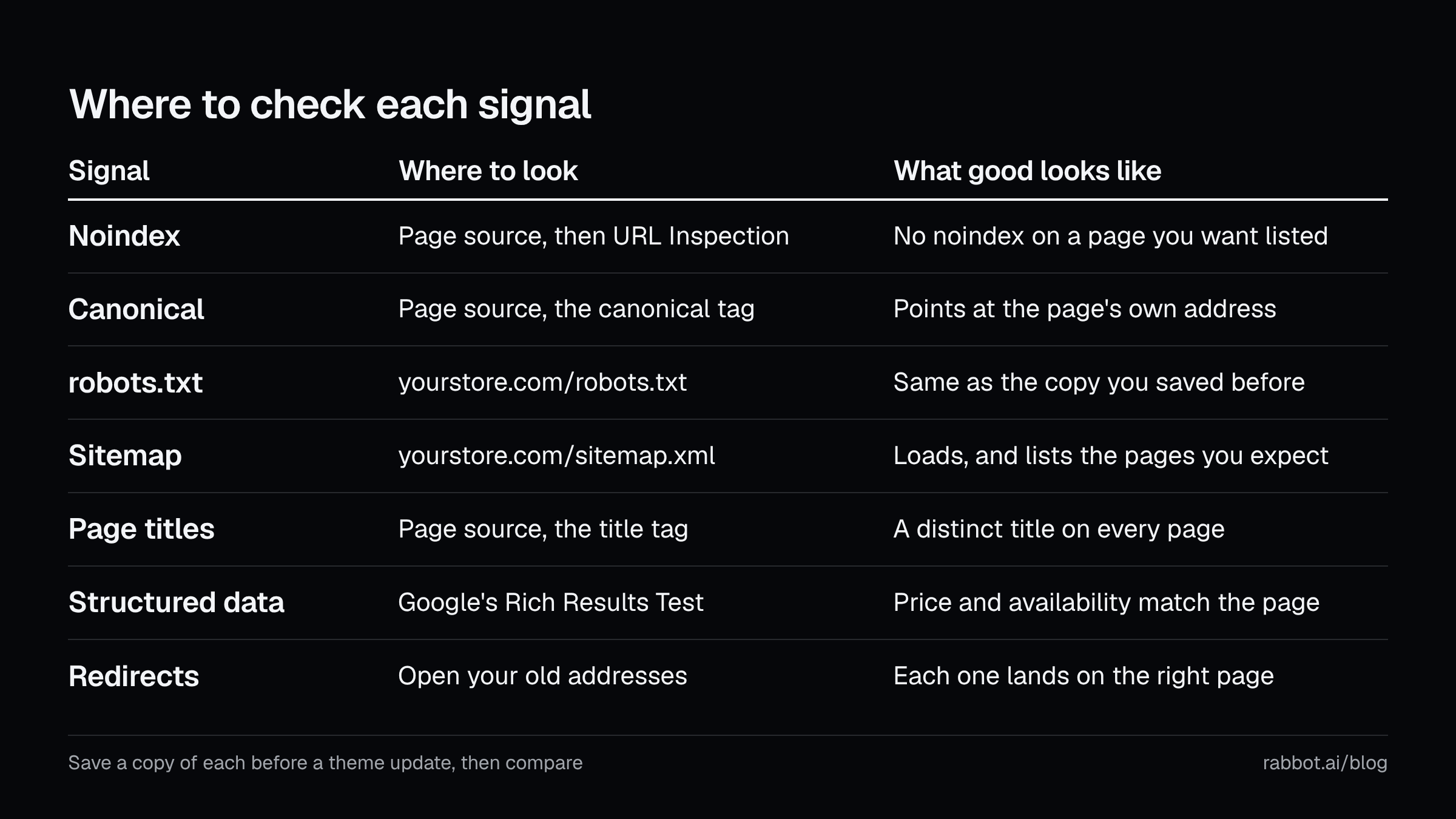
To check noindex, open the page’s source, its underlying code (in Chrome, Edge and Firefox, put view-source: in front of the address), and search for noindex. That finds the line in the page and misses the header. So also paste the address into the URL Inspection tool in Search Console, which shows what Google saw on one page, and read its “Indexing allowed?” line. For products, check the status and metafields in your admin too.
There is a trap in that check. A noindex only works if Google can fetch the page, and robots.txt can stop it. Google says its crawler “will never see the noindex rule” on a blocked page, and Search Console then reports “Indexing allowed?” as Yes whatever the page says. Read “Crawl allowed?” first, which tells you whether robots.txt blocks the page.
For robots.txt itself, open the file (don’t expect it to be short) and save a copy today, so you have a version to compare with after the next change.
Which address counts
The canonical tag is a line in a page’s code that names the address Google should treat as the real one when several addresses show the same page. Shopify adds it automatically, and your theme prints it. Google calls it “a strong signal that the specified URL should become canonical”, so a tag that names the wrong address steers Google to the wrong page.
To check, search a page’s source for rel="canonical", where you expect one tag naming the page’s own clean address, then paste the address into URL Inspection. It shows the “User-declared canonical” beside the “Google-selected canonical”, and Google says it “might select the user-declared canonical, but sometimes Google might choose another URL that it considers a better canonical example”.
A redirect is a rule that sends visitors, and Google, from an old address to a new one (in your admin, under Content, then Menus, then View URL Redirects). Shopify lets you redirect only from a broken address, one that returns a 404, the error a browser gets when an address points at nothing. And if you make a hidden collection visible again, its redirect is deleted automatically, because “redirects only work for URLs that return 404 errors”. Shopify says the same applies to products set to Draft, so a redirect can vanish as the side effect of an ordinary edit.
To test the redirects, open your last three old addresses (a deleted product, a collection whose address you changed, an old page) and see where each one lands.
What shows up in the results
The page title is the line in a page’s code that names the page, and Google often uses it as the headline of a result. Shopify themes build it from the title you set in your admin plus your store name. Google writes those headlines automatically, from the title, the headings and other prominent text, and it asks for a distinct title on every page. Read the <title> line in the source of your homepage, one product and one collection. A theme edit that gave every page the same title shows up straight away.
Structured data is a block of code behind a page that states facts in a form machines read, such as a product’s price and availability. Shopify says its themes include product structured data automatically, and Google’s rule is that the data “must be a true representation of the page content”. To check, run one product address through Google’s Rich Results Test, which reads a page’s structured data, and compare the price and availability it finds with the page.
The sitemap, which reports your other decisions
The sitemap is a file at yourstore.com/sitemap.xml that lists the pages you would like search engines to find. Shopify generates and updates it for you. Google says a sitemap “doesn’t guarantee that all the items in your sitemap will be crawled and indexed”, which is why I rank it last of the seven. Its contents follow your other choices, since Shopify removes a product when it is Unlisted or has seo.hidden set, so a product missing from it points back to the noindex routes above. Open /sitemap.xml, confirm it loads, and look for a product you have hidden and one you haven’t.
Running these checks on a schedule
Everything above is manual, which is fine for a first pass and tiresome for the tenth. The free store audit at /tools/store-audit/ is the first check. Type your store address and it crawls your homepage, up to eight product pages and three collections picked from your sitemap. It reports on titles and meta descriptions (the summary text under a result), headings, structured data, canonical tags, robots rules in the page and in robots.txt, and whether the pages your sitemap lists load without a redirect. It is a single crawl of those pages as they are today, and it watches nothing afterwards.
Watching afterwards is what I built Rabbot for. It reads the pages you monitor on a schedule, compares each check with the last one, and tells you when a page is flipped to noindex or a canonical tag changes. A title or meta description that changes unexpectedly, broken structured data, a redirect that loops and a page that starts returning an error raise alerts too. It also watches robots.txt for changes and tells you when sitemap.xml stops loading. Each problem opens one alert, which stays open until a later live check finds it fixed. The docs cover what counts as an issue and how a check works.
Paid plans check daily, so you hear the same day a check finds something, and the free plan checks 20 pages of your choosing weekly. When you publish a new theme, Rabbot sends every monitored page through the same checks, while edits to a theme that is already live don’t announce themselves, so the next scheduled check catches those. Rabbot is read-only, which means it can read your store and cannot change anything, so the fix stays with you in your Shopify admin. (Update, 8 October 2026: a changed SEO title, description or noindex setting now comes with a tap that puts the earlier value back, on Starter and above. Everything else still stays with you.) Day-to-day protection describes what a normal week looks like.
If you are still choosing an app, the roundup of Shopify SEO apps sorts sixteen of them into those that change your store and those that watch it, using each app’s own App Store listing, and it says where Rabbot doesn’t fit.
What to keep
The seven terms to keep are noindex, robots.txt, canonical, redirects, title, structured data and sitemap, and the habit is to press each preset after every garage visit. Before you publish a theme or install an app, save the source of your homepage, one product and one collection, plus /robots.txt. Afterwards, save them again and compare, then open your old addresses and /sitemap.xml. Noindex is the one I would look at first.
If you would rather not do all the pressing yourself, Rabbot runs its own checks on a schedule, daily on paid plans and weekly on the free plan. Run the free audit first, and install Rabbot from the Shopify App Store if you want it watching after that.
Sources
- Shopify Help Center, “SEO overview”. Supports the automatic defaults, theme-built title tags, and built-in product structured data. Checked 2026-09-29.
- Shopify Help Center, “Updating themes”. Supports the “Updated copy of” draft, code edits (including an app’s) carrying over unless they conflict, the failure message, and Review. Checked 2026-09-29.
- Shopify Help Center, “Uninstalling apps”. Supports theme code that an uninstall doesn’t remove. Checked 2026-09-29.
- Shopify Help Center, “Hiding a page from search engines”. Supports the three hiding routes, apps using seo.hidden, and sitemap removal. Checked 2026-09-29.
- Shopify Help Center, “Editing robots.txt.liquid”. Supports the default suiting most stores, the “loss of all traffic” warning, and theme uploads skipping robots.txt.liquid. Checked 2026-09-29.
- Shopify Help Center, “Finding and submitting your sitemap”. Supports the automatic sitemap.xml. Checked 2026-09-29.
- Shopify Help Center, “Creating and managing URL redirects”. Supports the admin location, the broken-address rule, automatic deletion, and products in Draft. Checked 2026-09-29.
- Shopify developer docs, “Add SEO metadata to your theme”. Supports themes printing the title and canonical tag. Checked 2026-09-29.
- Shopify developer docs, “About theme app extensions”. Supports such apps not editing theme code. Checked 2026-09-29.
- Google Search Central, “Block Search Indexing with noindex”. Supports what noindex does, its two forms, and a robots.txt block hiding it. Checked 2026-09-29.
- Google Search Central, “How to specify a canonical URL with rel=canonical and other methods”. Supports the “strong signal” wording. Checked 2026-09-29.
- Google Search Central, “Influencing your title links in search results”. Supports automated titles and the advice on distinct titles. Checked 2026-09-29.
- Google Search Central, “General structured data guidelines”. Supports the true-representation rule and the Rich Results Test. Checked 2026-09-29.
- Google Search Central, “What is a sitemap”. Supports sitemaps aiding discovery without a guarantee. Checked 2026-09-29.
- Google Search Console Help, “URL Inspection tool”. Supports the “Indexing allowed?”, “Crawl allowed?” and canonical fields, and the robots.txt caveat. Checked 2026-09-29.
- Google Search Console Help, “About Search Console”. Supports Search Console being a free service. Checked 2026-09-29.
- Rabbot’s own pages: the store audit, features, the app roundup and the docs articles linked above. Support the audit’s sample, what Rabbot watches, and the roundup’s sixteen apps. Checked 2026-09-29.