Your Shopify sitemap at /sitemap.xml and how to check it
Where your Shopify sitemap lives, what it holds, why you cannot edit it, and how to check that it still loads.
The short version. Someone has asked you for your sitemap address, or Google Search Console, Google’s free report on how it sees your site, has said it couldn’t fetch your sitemap. The address is yourstore.com/sitemap.xml, and Shopify builds the file and updates it when you add a product, collection, page or blog post. A sitemap is a list of your page addresses that search engines read to find your pages, and yours is an index, which just means a sitemap of sitemaps. You cannot edit it and you need no generator, but you choose what goes in: a product you set to Unlisted, Shopify’s status for hiding it from search, stays out. Submit the sitemap in Search Console once, so the report can show you its status, and check it by opening it. If it stops responding, Search Console says “Couldn’t fetch” only after Google next tries, and Google’s help page gives no interval for that. Rabbot alerts you when sitemap.xml stops responding. It does not edit the sitemap.
Picture the directory board in the lobby of an office block, the one that lists every company and its floor. The building manager keeps it up to date, nobody else can repaint it, and you can ask for a company to be left off. Couriers who have never delivered to the building use it to find the right door. Your sitemap is the board, Shopify is the manager, and the courier is Google’s crawler, the program that visits pages so Google can list them.
Where to find your Shopify sitemap
Every Shopify store generates the file by itself, so there is nothing to switch on first. Shopify’s help page says it sits at the root of each of your store’s domains, such as example.com/sitemap.xml, and the root just means the address with nothing after the domain name. Take your primary domain, which Shopify describes as the one displayed in your store’s address bar, and add /sitemap.xml. The result is your sitemap URL, a URL being the technical word for a web address.
If you sell internationally on several domains, each domain gets its own sitemap at its own root. If you own other domains and don’t use them for international targeting, Shopify says to make sure they all redirect to your primary domain.
Open the address and you will see web addresses wrapped in tags, because the .xml ending means the file is XML, a plain-text format for structured lists that machines read.
What it holds, and what it leaves out
Shopify’s help page says the file links to your products, each product’s primary image, your pages, your collections and your blog posts. It does that through separate sitemaps for products, collections, blogs and pages, which I will call the children of your index. Google caps one sitemap at 50,000 addresses or 50MB uncompressed, which is why a bigger site splits the file and submits the pieces through an index.
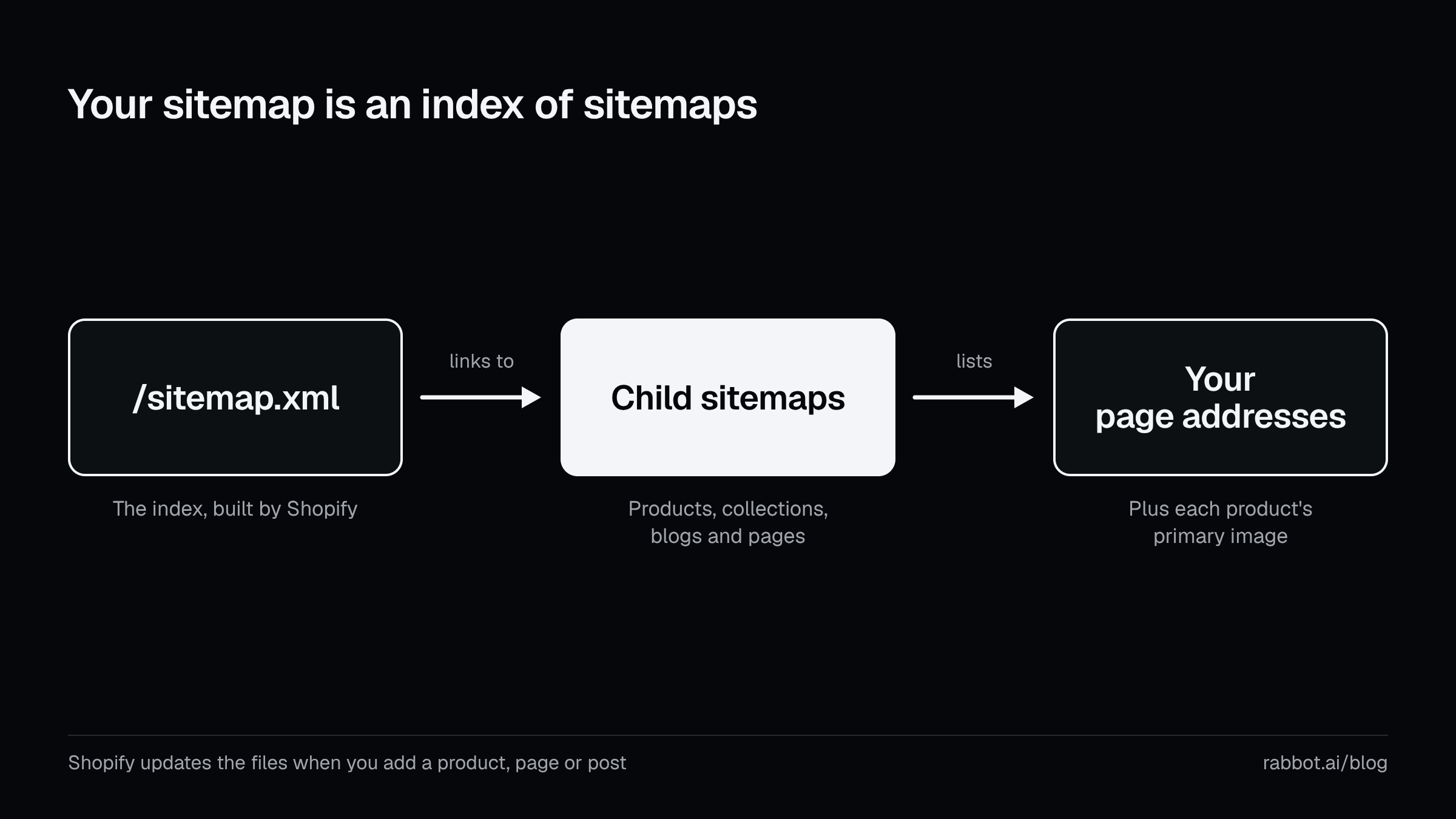
From Shopify’s help page on finding and submitting your sitemap.
Shopify’s page does not show you the file, so on 1 October 2026 I read the index of four public Shopify stores and opened some of the children. All four listed children for products, pages, collections and blogs, each with a number in its name. The largest catalogue had 38 product files, so a long list is not a fault. Two also listed sitemap_metaobject_pages_1.xml, which held addresses for custom content entries (metaobjects) that render as web pages, as Shopify’s developer documentation describes. All four listed sitemap_agentic_discovery.xml as well, which I could not find described in the Shopify pages I read. The copy I opened held a single address, the store’s /agents.md page, a file Shopify says it manages by default for every store. I saw all of this on one day, and the files can change.
What the file leaves out is where you have a say. Shopify’s page on hiding a page names two settings that keep an item out of your sitemap. One is the Unlisted status on a product. The other is the seo.hidden metafield, a custom field you can attach to a page, blog post or product, with its value set to 1. If a product you expect is missing, I would check those two settings first.
The same page also shows how to hide a page with a noindex line in theme.liquid. Noindex is an instruction in a page’s code that tells search engines not to list it, and theme.liquid is the main file of your theme. I could not find a sentence saying that route removes the page from the sitemap. Google advises listing the pages you want to see in its results, so check a page you have noindexed instead of assuming it is out.
Google adds one limit of its own. A sitemap helps search engines discover addresses, and Google says it “doesn’t guarantee that all the items in your sitemap will be crawled and indexed”.
How to create a Shopify sitemap: you do not, and you cannot edit it
Shopify’s help page says every store generates the file automatically, which answers the question behind “create sitemap Shopify” and “Shopify sitemap generator”. There is nothing to create. Google’s own advice is to have your website software generate the sitemap, and on Shopify the software already does.
Editing is closed too. The index Shopify generates carries a comment, a note inside the file for anyone who reads it, that says “The sitemap can not be edited manually”. It was there on all four stores.
Two things are within your reach. One is what goes in, through Unlisted and seo.hidden. The other is robots.txt, the file that tells crawlers where they may go. Shopify’s page on editing robots.txt.liquid, the theme template that builds that file, lists “Add extra sitemap URLs” among the edits you can make, which points crawlers at one more sitemap. Shopify calls that an unsupported customization and says Shopify Support can’t help with it. It warns that “Incorrect use of the feature can result in loss of all traffic.” I would leave it alone unless you have a reason and someone who can edit theme code.
Two cases sit outside all of that. A page of links for visitors is an ordinary page. Google reads sitemaps in three formats, XML, RSS or Atom feeds and plain text lists, and a page of links is none of them. A headless storefront, one built outside a Shopify theme, builds its own sitemap. Shopify’s Storefront API, the interface developers use to build a storefront from a store’s data, has a sitemap query for exactly that.
Some apps list a sitemap feature too. The roundup of Shopify SEO apps has a paragraph on what the listings say about sitemaps and robots.txt, as of 29 September 2026.
Submitting it to Google
Shopify’s help page walks through this, and I read it on 1 October 2026, so the screen names may have moved by the time you do. First you verify your domain in Google Search Console, which needs the store out of private mode. Private mode is the setting that hides all your pages from visitors and search engines behind a password page. Then open Search Console, choose Indexing, then Sitemaps, type sitemap.xml in the “Add a new sitemap” box and choose Submit. If you use international domains, do it for each one.
Google says a Sitemap line in robots.txt lets it find a sitemap on its own. Shopify’s default robots.txt template prints that line, and the file on a public store I read on 1 October ended with it. I would still submit the sitemap, for a reason Google gives. The Sitemaps report, the Search Console screen that lists your sitemaps, shows only those submitted there or through its API. It “does not show any sitemaps discovered through a robots.txt reference”. Submit yours and you get a status. Skip it, and if the file breaks the report has nothing to say.
The same Shopify page says you can switch private mode back on after verifying, and Google can’t read a sitemap while it is on. For a store that is meant to be live, that switch is the first thing to check.
How to check it yourself
Six checks cover it, from the quickest to the one that asks Google.
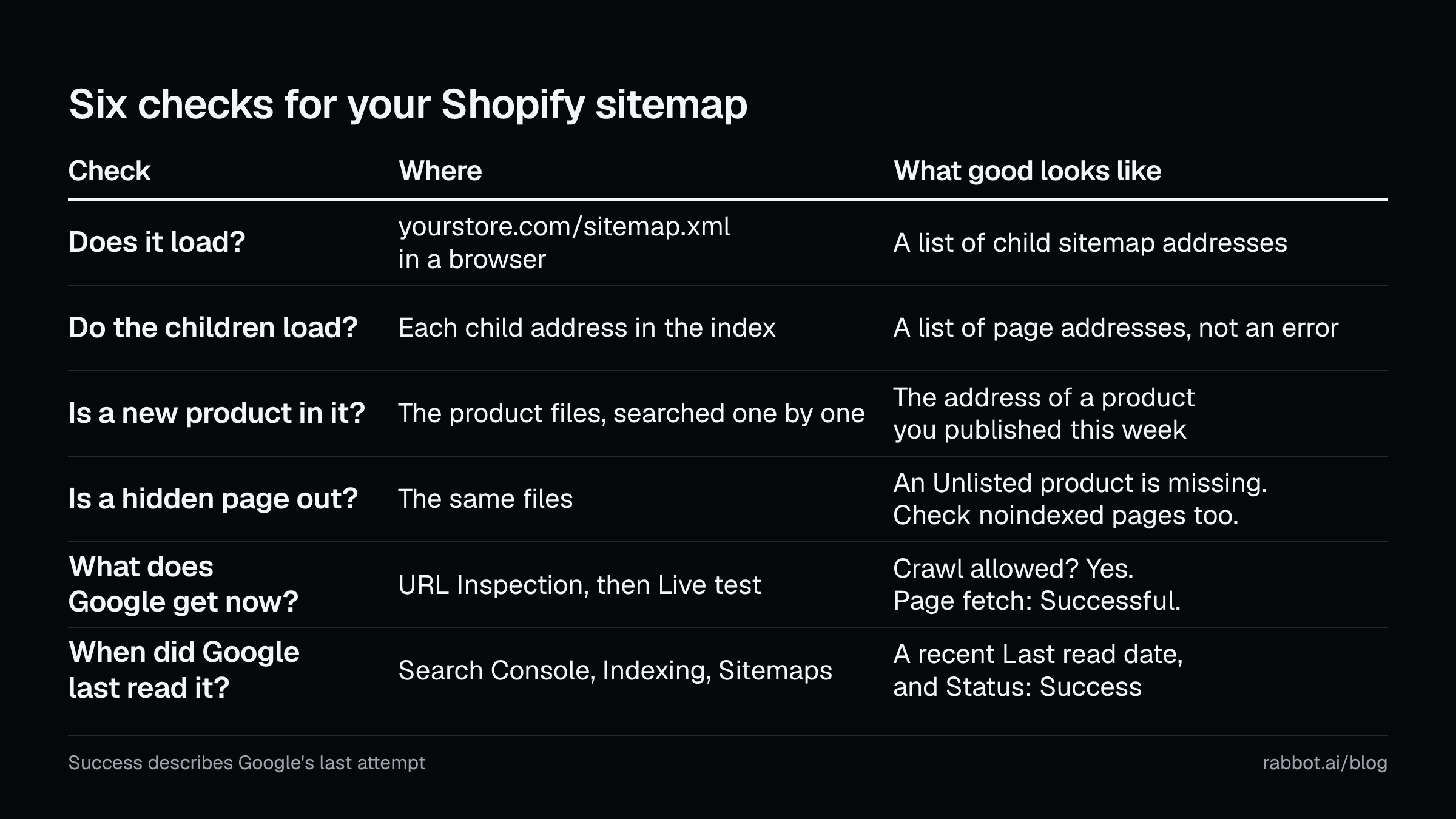
Start by opening yourstore.com/sitemap.xml in a browser. You want a list of addresses, one for each child sitemap. If you get a 404 (the error a browser shows when an address points at nothing), a blank page or a password page, the file is not responding. Then open each child. Search the product files for something you published this week, check that an Unlisted product is missing, and look for a page you have noindexed.
Next, ask Google what it gets right now. Paste the sitemap address into the URL Inspection tool in Search Console, which shows what Google sees at one address, and choose Live test. Google’s instructions for testing a sitemap say you want “Crawl allowed?” to read Yes and “Page fetch” to read Successful. Use the live test, because the tool’s first screen shows what Google last indexed, which may differ from what it gets today.
Last, read the Sitemaps report under Indexing. Status shows the result of Google’s last request, Last read is the last time Google fetched the file, and Discovered pages counts the addresses Google found, across every child for an index. Success means the last request worked. It does not say the file works today, so compare Last read with today’s date.
A sitemap that has stopped responding, seen from outside
Ask for the file from outside, the way Google does, and a sitemap that has stopped responding answers with something that is not the file. Every response carries a status code, the three-digit number a server sends back. A 200 means the request worked, a 404 means the server cannot find the address, and the 500s mean the server itself had a problem. A store in private mode hides everything from search engines behind a password page, and Shopify’s note on the sitemap says Google can’t access it there. Among the causes Google’s help page lists for “Couldn’t fetch” are a robots.txt rule that blocks the sitemap, a wrong address, and “server unavailability”, which it says can be transient.
The robots.txt rule is the one your browser never shows you. Shopify describes robots.txt as the file that tells crawlers which pages to request, so a rule that blocks the sitemap is addressed to Google and leaves your own view alone. The file can load for you and fail for Google, which is why the live test above asks Google itself.
Why Search Console reports it late
Google says it recrawls a sitemap “at a pace unrelated to the regular site crawl”, and the help page gives no interval. The Sitemaps report shows “the status of the last request for each sitemap”, so until Google asks again the screen carries the old answer. When a fetch fails, Google retries for a few days, then stops, and you have to fix the cause and resubmit. Its own advice is to “check back periodically”. The report is accurate about Google’s last attempt, and your sitemap can fail after it.
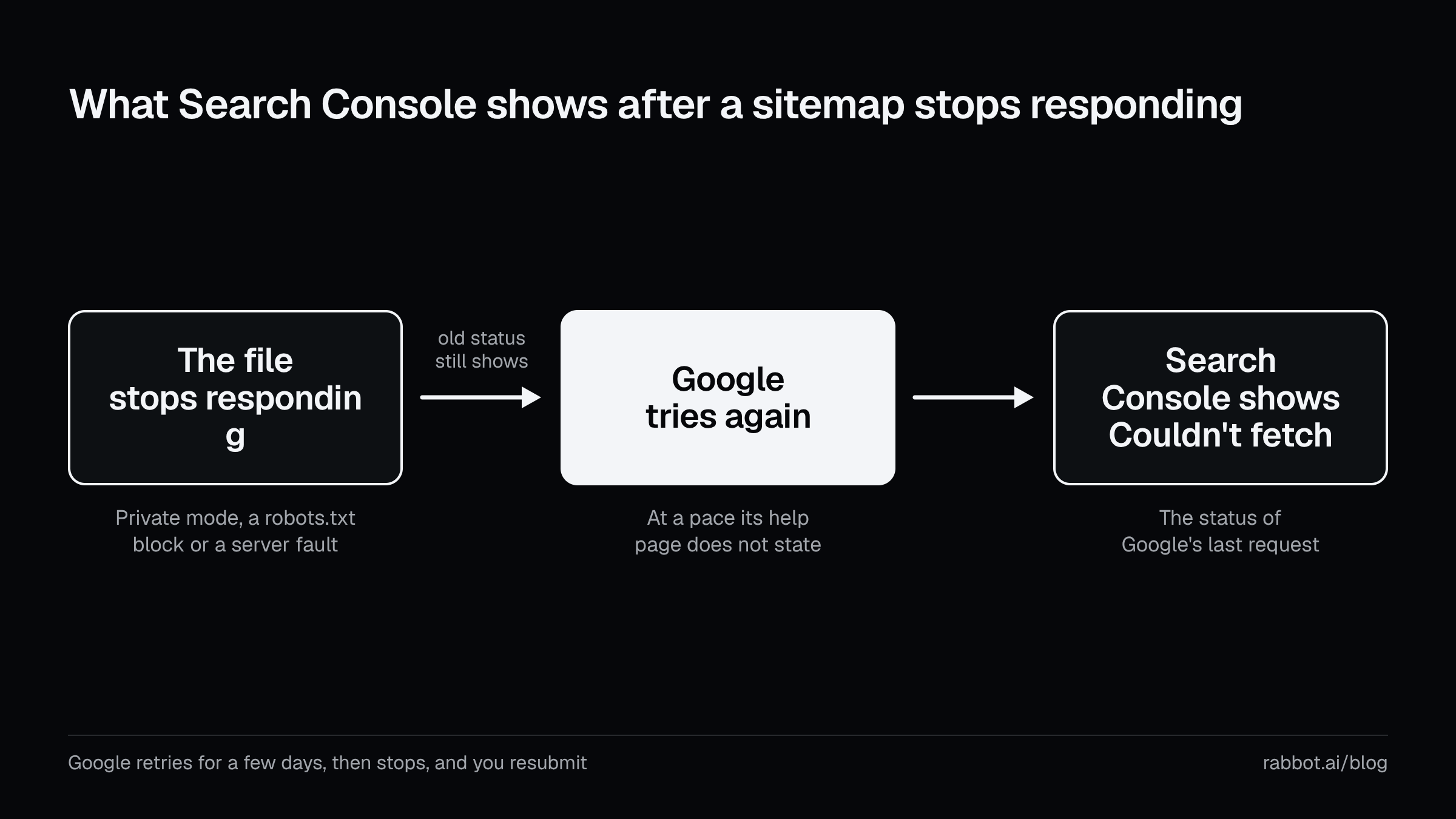
From Google’s Search Console help page on the Sitemaps report.
A dead sitemap sounds like your store dropping out of Google, and I flinch at that too. Most of it is less bad. Google says that once it has read a sitemap it remembers what it learned, and a later failure does not make it forget. It also says that if your pages are properly linked it can usually discover most of your site. For a small, well-linked site of about 500 pages or fewer, it says a sitemap may be unnecessary. In the lobby, the board has gone dark. Couriers who know the building still know it, and the ones who walk the corridors, which are your links, still find the doors. What stops is the news of new tenants.
The one worry I would keep is the gap. A new product reaches Google through your links or through a sitemap that works, and the gap is how long a dead file goes unnoticed. Google lists a large site, and a new site with few links pointing to it, among the cases where you might need a sitemap. I would worry first about those stores. In my post on what breaks in Shopify SEO after launch I ranked the sitemap last of seven signals, and I stand by that ranking. It is why I would deal with a dead sitemap this week, without panic.
Rabbot’s part
I build Rabbot, so read this section with that in mind. Rabbot alerts you when sitemap.xml stops responding, and the features page lists the check as “Sitemap not loading”. It does not edit the sitemap. Rabbot writes to your store only when you tap a fix on a finding, and a sitemap finding never carries one. The fix stays with you: take the store out of private mode or undo the robots.txt edit, whichever turns out to be the cause.
Two other checks sit beside the sitemap alert. Rabbot watches robots.txt for changes, and it raises its own finding when your storefront goes back behind its password. Nothing closes until Rabbot has looked again, so fixing a cause does not close an alert by itself. How Rabbot checks your store explains what a check is, and how often Rabbot checks your pages gives the schedule for monitored pages. Which URLs Rabbot monitors explains how the list of monitored pages is built.
The free store audit starts from what the sitemap lists. It samples your homepage, up to eight product pages and three collections, picking them from your sitemap, and reports whether the pages your sitemap lists load without a redirect. It is a single crawl, run when you ask.
What to keep
Two things are worth keeping. Shopify builds and updates the file at yourstore.com/sitemap.xml, so you control only what goes in, through Unlisted and seo.hidden, and whether Google can reach it, through private mode and robots.txt. And “Success” in Search Console describes Google’s last attempt, so the file may have changed since.
Open the sitemap after any change to your domains, your robots.txt or your store’s access, and again whenever Search Console shows anything but Success. If you look after other people’s stores, write each store’s sitemap address in your handover notes, so the next person knows where to look.
Rabbot is on the Shopify App Store. Every paid plan starts with a 14-day trial, from $19 a month.
Sources
- Shopify Help Center, “Finding and submitting your sitemap”. Supports the automatic file and its updates, the links to products, primary product images, pages, collections and blog posts through separate sitemaps, the location at the root of each domain, a sitemap per international domain, redirecting spare domains to the primary domain, the Search Console steps, verifying with private mode off and switching it back on afterwards, and Google being unable to access a sitemap in private mode. Checked 2026-10-01.
- Shopify Help Center, “Hiding a page from search engines”. Supports Unlisted products and seo.hidden pages, posts and products staying out of the sitemap, the seo.hidden metafield, and the noindex route in theme.liquid with no sitemap sentence. Checked 2026-10-01.
- Shopify Help Center, “Restrict access to your online store”. Supports private mode hiding all pages from visitors and search engines behind a password page. Checked 2026-10-01.
- Shopify Help Center, “Change your primary domain”. Supports the primary domain being the one displayed in the address bar. Checked 2026-10-01.
- Shopify Help Center, “Editing robots.txt.liquid”. Supports “Add extra sitemap URLs”, the unsupported customization caution, the “loss of all traffic” warning, and robots.txt telling crawlers which pages to request. Checked 2026-10-01.
- Shopify developer docs, “Customize robots.txt” and the Liquid “sitemap” object. Support the default robots.txt template printing a sitemap line. Checked 2026-10-01.
- Shopify developer docs, “Use metaobject capabilities”. Supports metaobjects rendered as web pages being included in the sitemap. Checked 2026-10-01.
- Shopify developer docs, “agents.md.liquid”. Supports Shopify managing the /agents.md file by default for every store. Checked 2026-10-01.
- Shopify developer docs, Storefront API “sitemap” query. Supports headless storefronts generating their own XML sitemaps. Checked 2026-10-01.
- The sitemap.xml index of four public Shopify stores (allbirds.com, brooklinen.com, colourpop.com and kith.com), the sitemap_agentic_discovery.xml child on brooklinen.com, the sitemap_metaobject_pages_1.xml child on allbirds.com, and the end of the colourpop.com robots.txt. Support the “can not be edited manually” comment, the child names, numbers and counts, the metaobject and agentic children, and the Sitemap line in robots.txt. Read 2026-10-01.
- Google Search Central, “Learn about sitemaps”, last updated 2025-12-10. Supports what a sitemap is, the “doesn’t guarantee” wording, discovery through links, the large and new site cases, and the 500-page figure. Checked 2026-10-01.
- Google Search Central, “Build and submit a sitemap”, last updated 2026-07-08. Supports the 50,000 address and 50MB limits, listing the pages you want in results, the three formats, website software generating the sitemap, and the Sitemap line in robots.txt. Checked 2026-10-01.
- Google Search Central, “Manage your sitemaps with a sitemap index file”, last updated 2025-12-10. Supports splitting a large sitemap and submitting the pieces through an index. Checked 2026-10-01.
- Google Search Console Help, “Sitemaps report”. Supports an index being a sitemap of sitemaps, the report listing only submitted sitemaps, the recrawl pace “unrelated to the regular site crawl”, the status of the last request, the few days of retries, “check back periodically”, Google remembering earlier reads, the “Couldn’t fetch” causes, the Last read and Discovered pages columns, and the live inspection test. Checked 2026-10-01.
- Google Search Console Help, “URL Inspection tool”. Supports the first screen not being a live test, and the “Crawl allowed?” and “Page fetch” fields. Checked 2026-10-01.
- Google Search Console Help, “About Search Console”. Supports Search Console being a free service that shows how Google sees your site. Checked 2026-10-01.
- MDN, “HTTP response status codes”, last modified 2026-09-17. Supports the meanings of 200, 404 and the 500s. Checked 2026-10-01.
- Rabbot, features, how Rabbot checks your store, how often Rabbot checks your pages, which URLs Rabbot monitors, reachability states, the free store audit, the roundup of Shopify SEO apps, my post on what breaks in Shopify SEO after launch and the Shopify App Store listing (apps.shopify.com/rabbot). Support every statement about Rabbot here, the audit’s sample, the sitemap paragraph in the roundup, and the sitemap ranking in the earlier post. Checked 2026-10-01.